
Use Email Customizer to send branded core WordPress email notifications. Set a default template for all notifications, or create unique templates for some of the most common WordPress emails.
Create a Default Template for your WordPress notifications
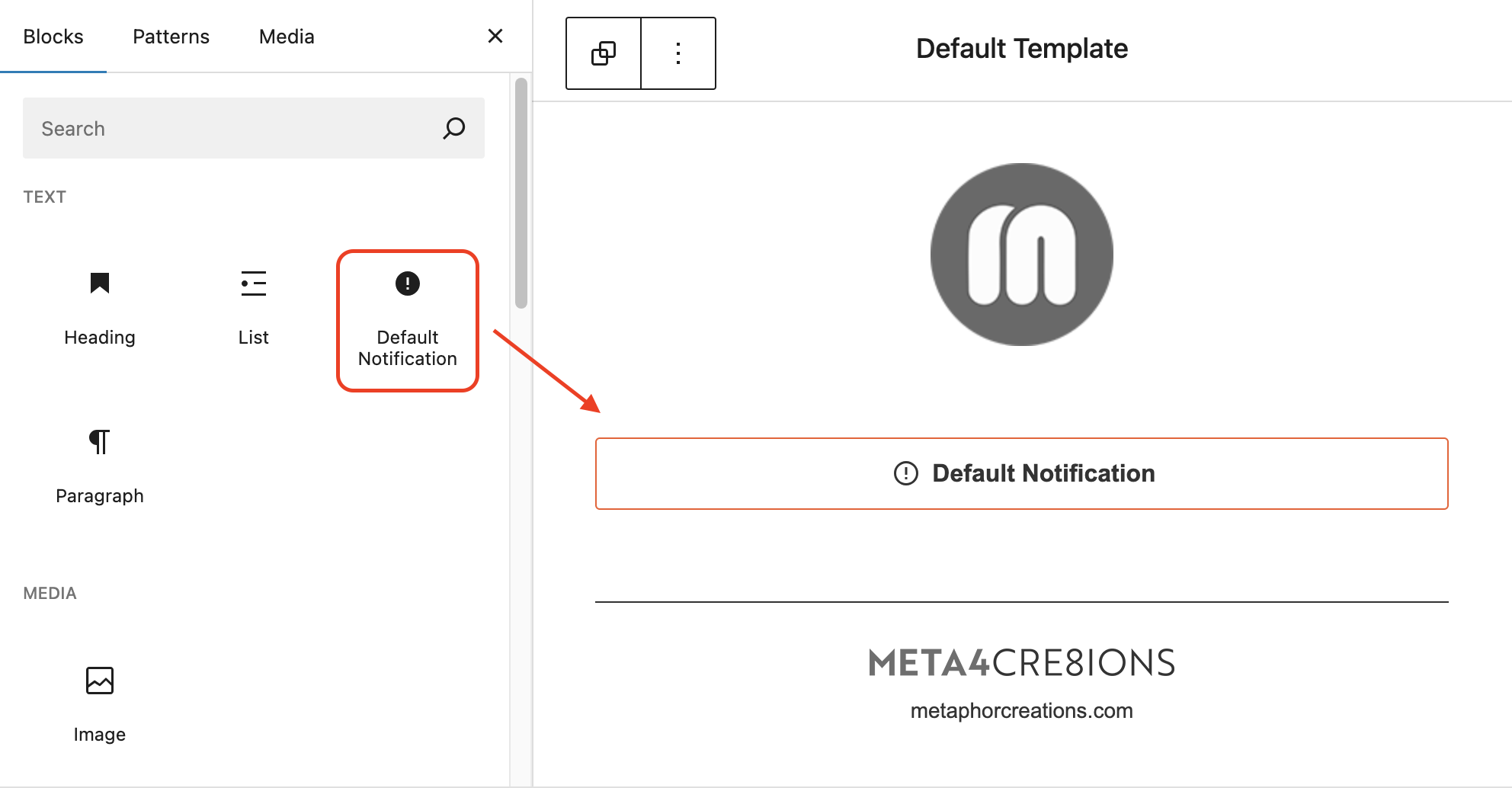
The easiest way to set up your custom WordPress notifications is to use the Default Notification block within your email template. This blocks displays the text that WordPress sends for each notification type. You should always include this block in the template you use for your Default WordPress Email Template (See settings documentation below).
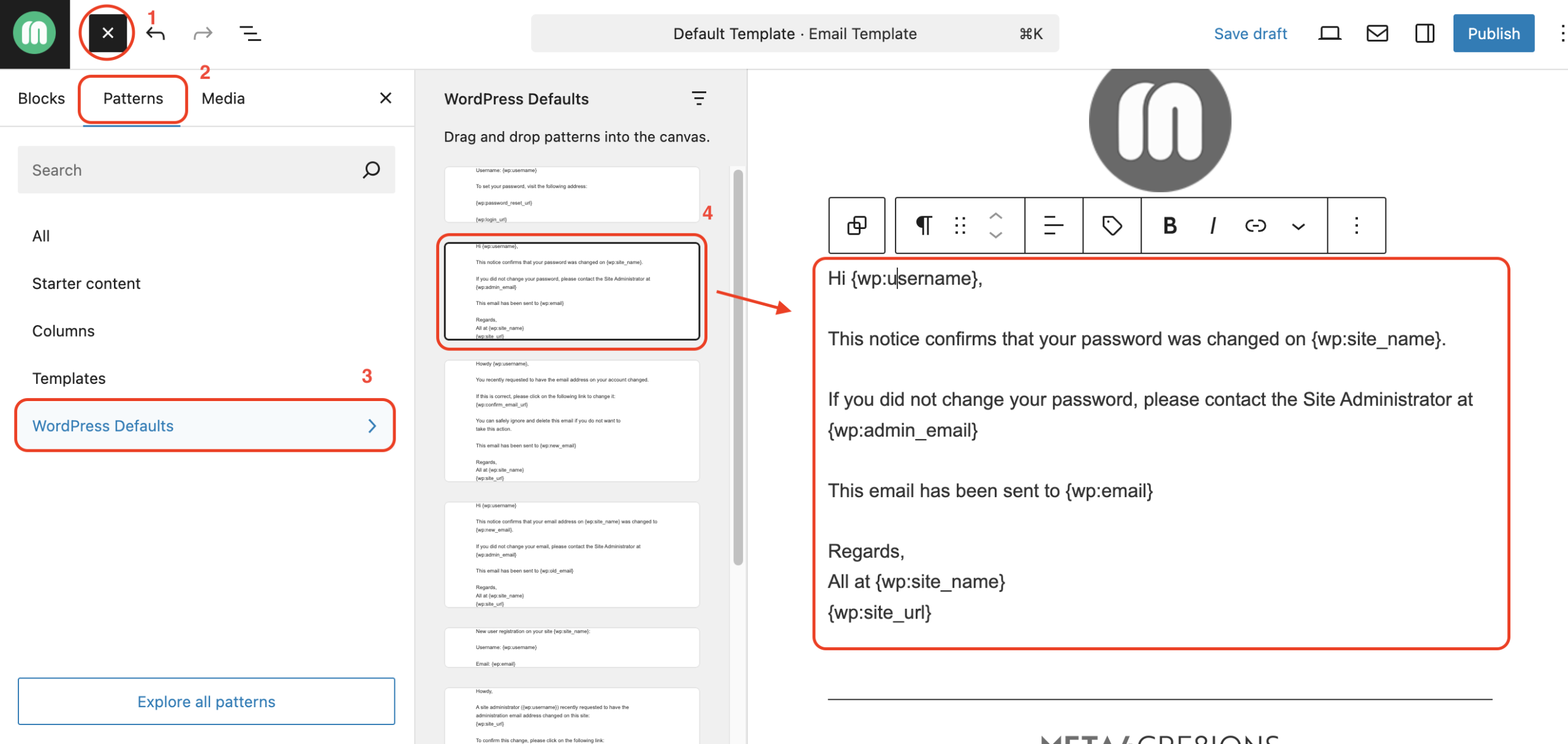
Using preset patterns
You can customize the text that is used in some core WordPress notifications. When using this method, do not include the Default Notification block. This method should only be used for individually assigned notification templates, not as the Default Email Template (see Add custom templates for specific notifications below). While editing your template:
- Selected the + icon in the top left of your screen.
- Select Patterns.
- Select WordPress Defaults.
- Hover over the options that appear to see the name of the pattern. This should match the type of notification you will be applying the template to.
- Click the pattern you want and it will be inserted into your template.
You can now modify any of the preset text. Be sure to keep the merge tags that are used within the pattern or your users may not get the info they need.
Enable the WordPress integration
On the Email Templates > Settings > Integrations screen, click the toggle element in the WordPress panel to enable WordPress template functionality. Click Save Settings to save this change.

Add a default email template
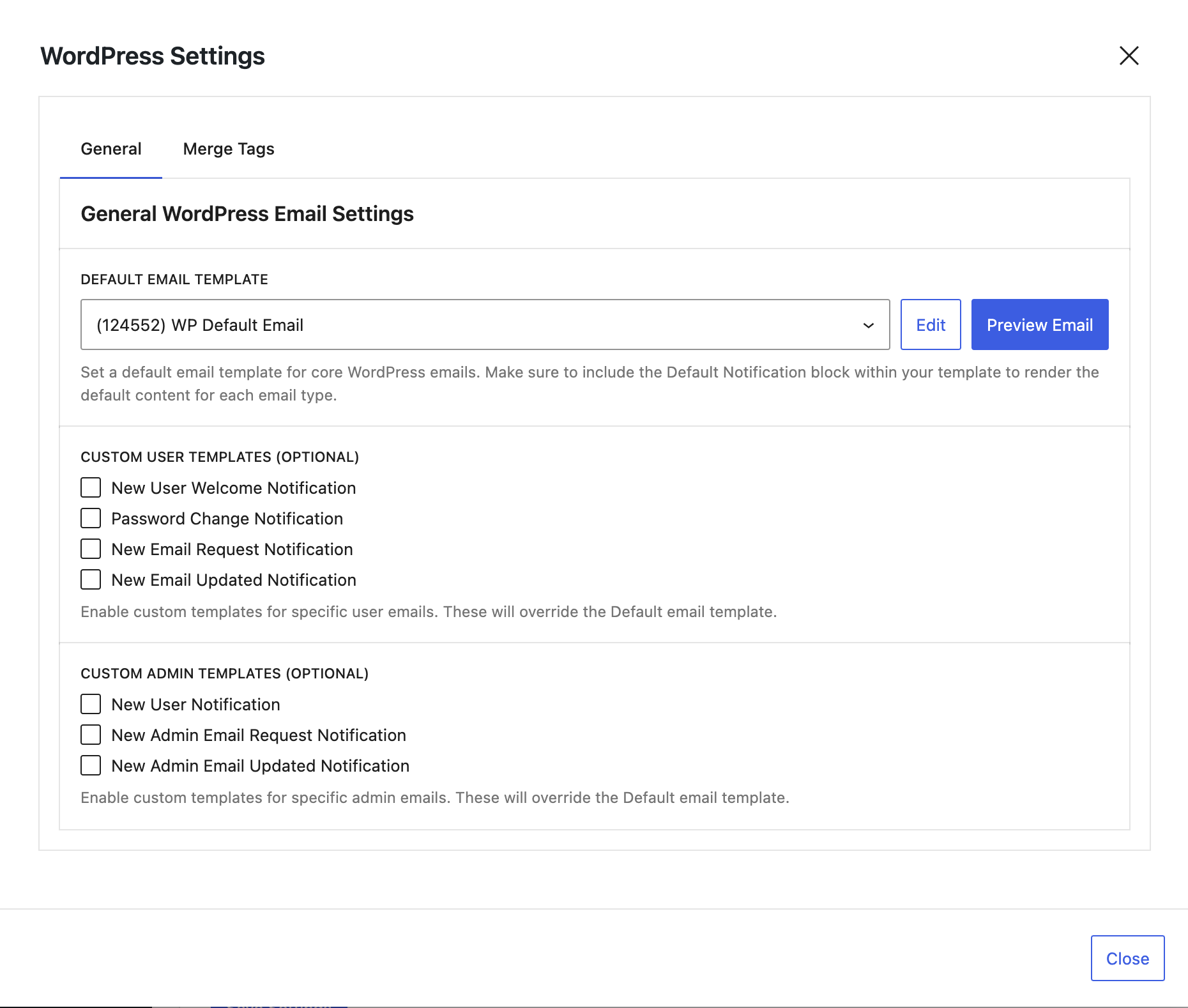
Select the gear icon in the WordPress panel to open the settings for the WordPress integration.

On the General tab, use the Default Email Template dropdown to select one of your email templates. This template will be used for all core WordPress emails. You can override certain core emails by enabling the checkboxes in the Custom User Templates or Custom Admin Templates sections.
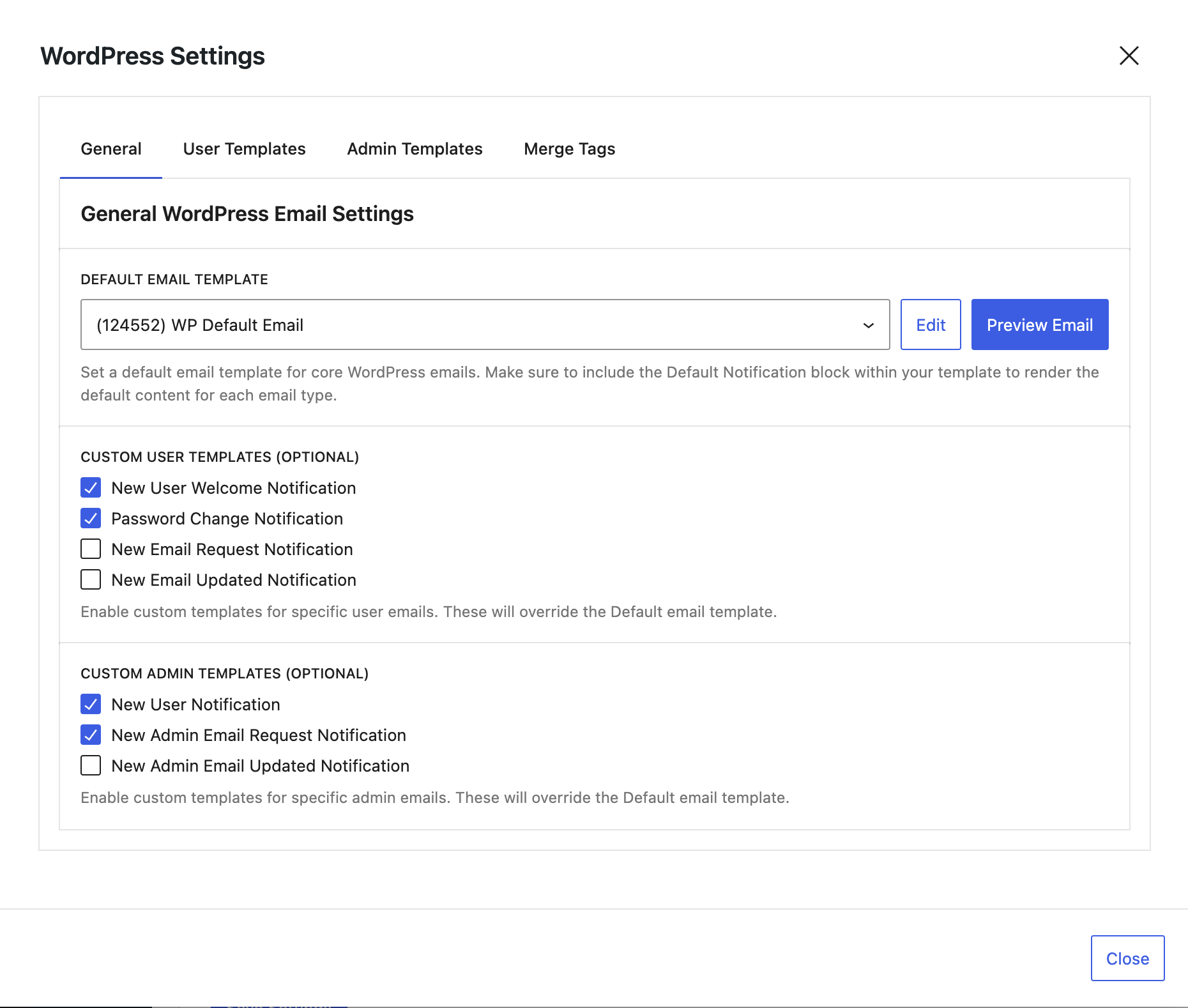
Add custom templates for specific notifications.
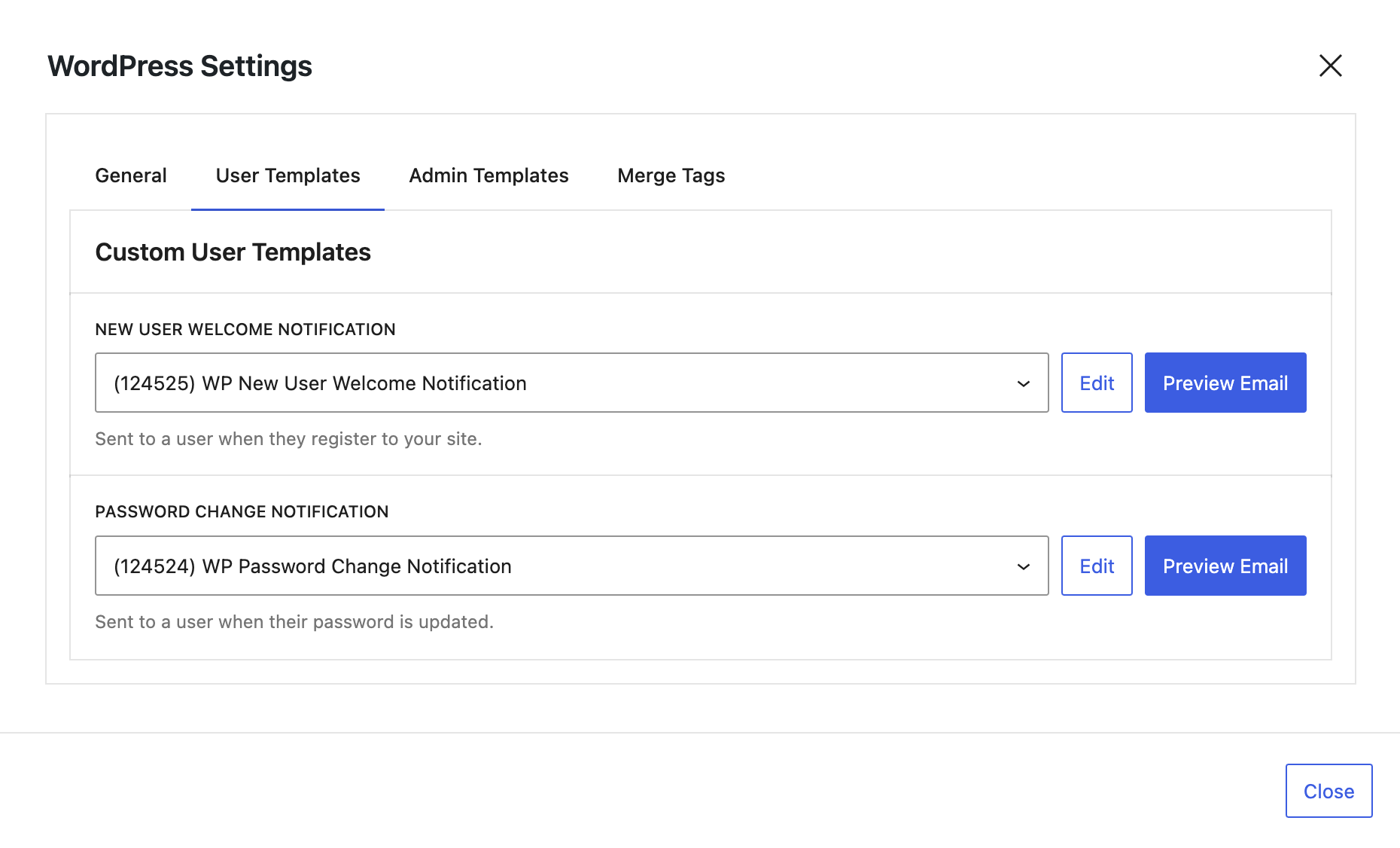
On the General tab, select the checkboxes for the notifications you want to customize. You will see new tabs appear for User Templates and Admin Templates if any custom templates are enabled.
Navigate to the appropriate section for the notification you want to override. Use the dropdowns to set the custom template you want to use for each notification.
Map available merge tags
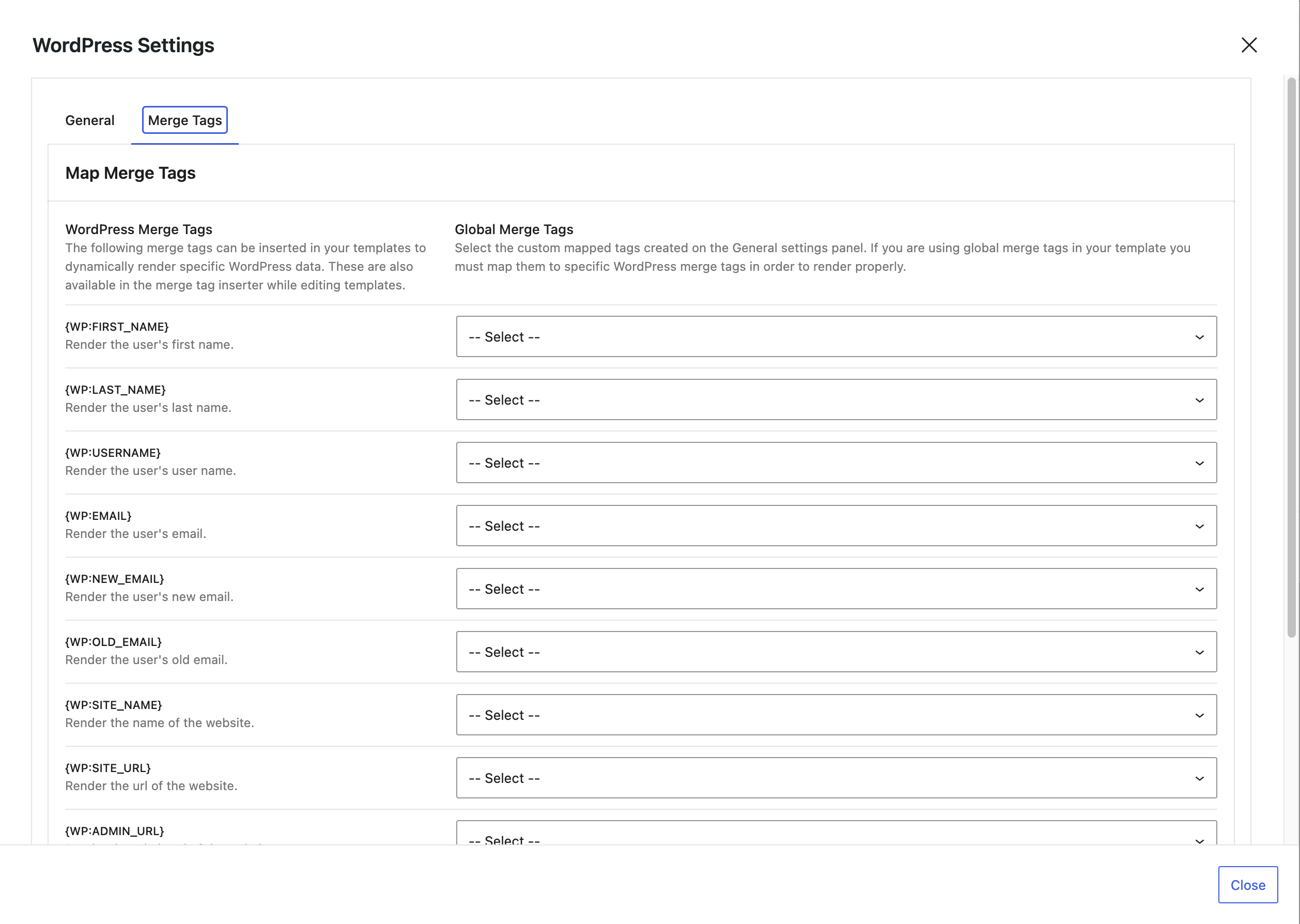
You can display certain WordPress user data dynamically using merge tags within your templates. Select the Merge Tags tab to see the available fields you can populate with your custom merge tags. You can use the WordPress merge tags directly in your templates, or map them to your custom global merge tags that are used globally with any integration.
See the following article for more information on setting up and using custom merge tags in your templates: https://www.metaphorcreations.com/article/email-customizer/general/using-merge-tags-in-your-template/
Additional resources
Use the links below for more information and guidance on adding blocks. Keep in mind that these articles are general information related to the WordPress Editor and building with blocks. Email Customizer does not utilize all blocks or functionality due to the limited capabilities of emails.
WordPress Editor