
Easily sync your custom email templates with your Mailchimp account. This integration lets you authorize access, assign personalized merge tags, and export your templates directly to your Mailchimp dashboard for use in campaigns.
Enable the Mailchimp integration
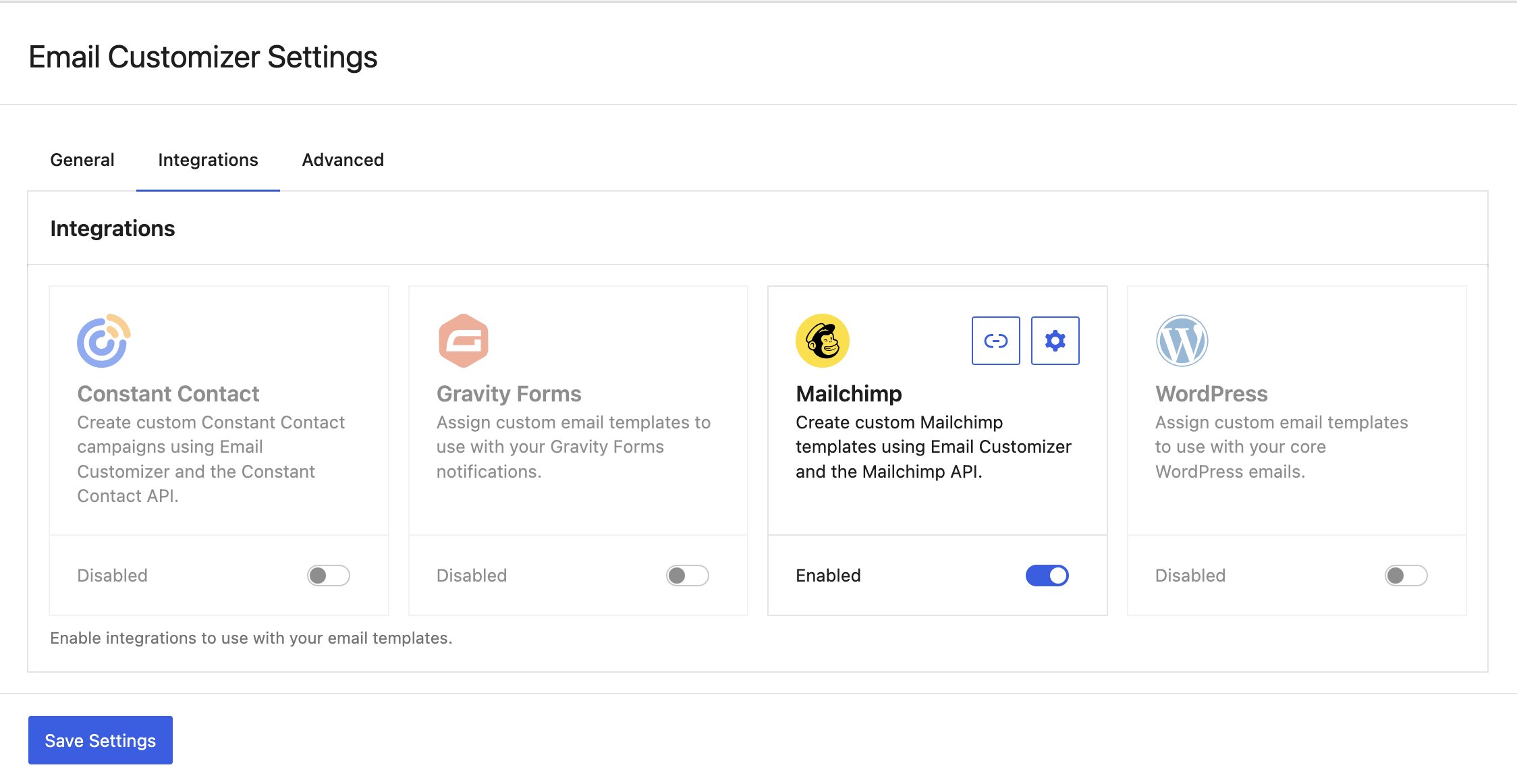
On the Email Templates > Settings > Integrations screen, click the toggle element in the Mailchimp panel to enable Mailchimp. Click Save Settings to save this change.
Authorize Mailchimp
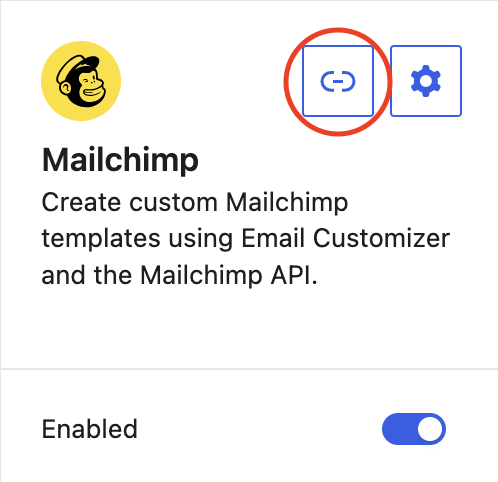
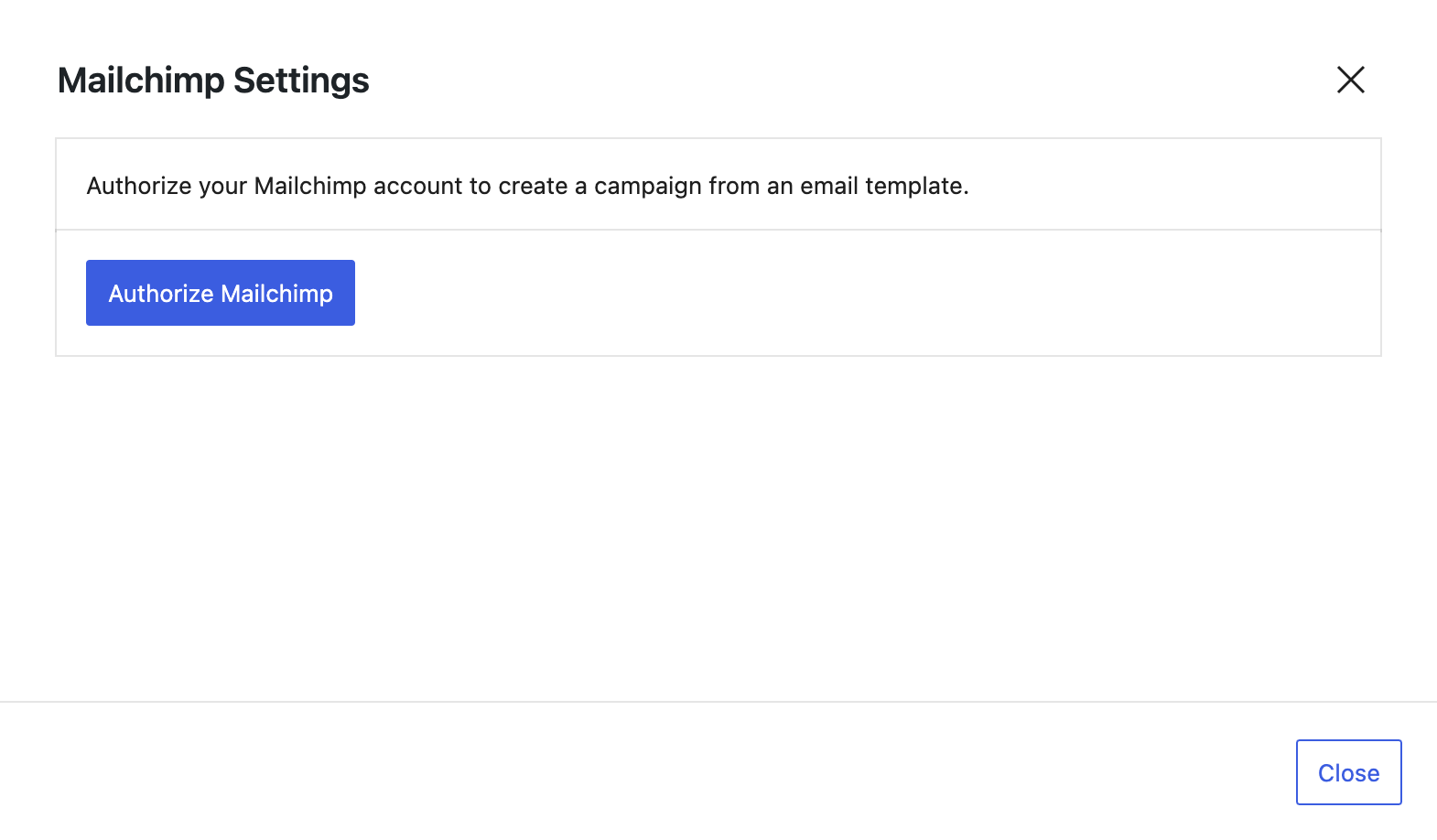
Before you can send templates to Mailchimp you need to authorize your account. Go to Email Templates > Settings > Integrations and click the link icon in the Mailchimp panel to open the modal. Click the Authorize Mailchimp button.
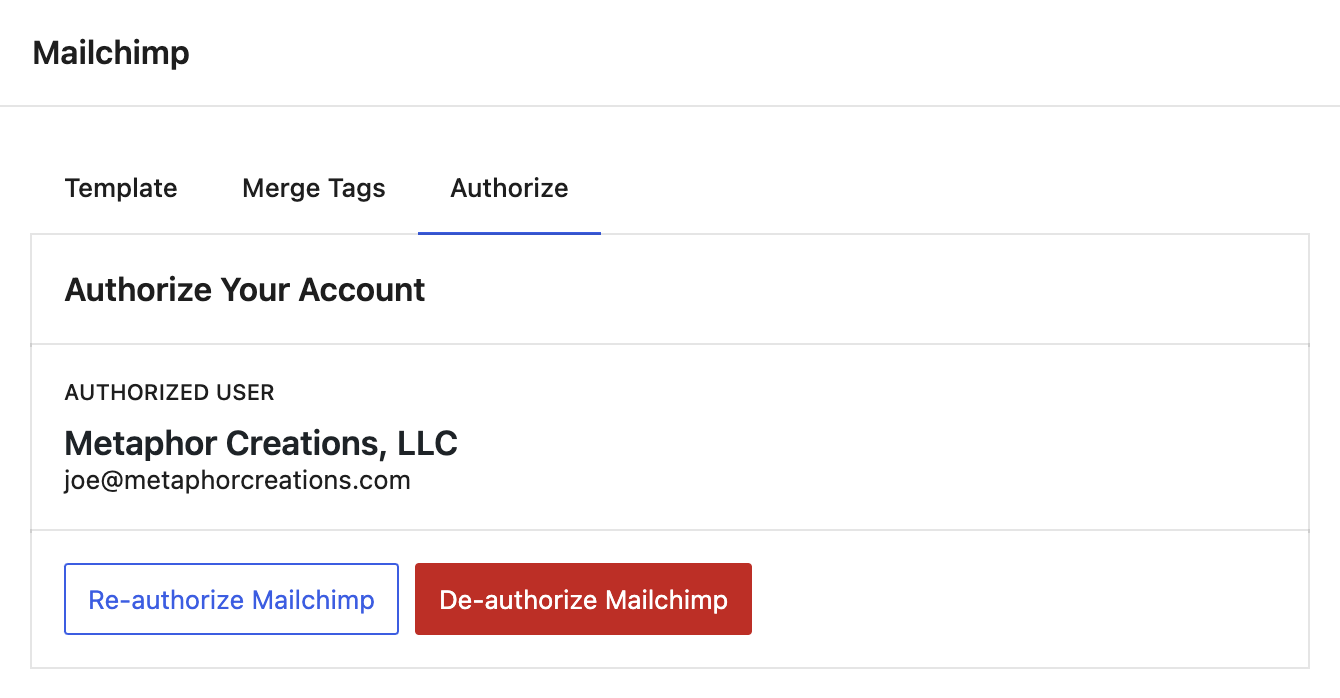
You will be guided through the authorization process externally via Mailchimp. Once the authorization is complete you will be redirected back to your site. Click the Authorization tab to see that you have connected successfully.
Map available merge tags
You can set Mailchimp user data dynamically using merge tags within your templates. Go to Email Templates > Settings > Integrations and select the gear icon to open the settings modal.
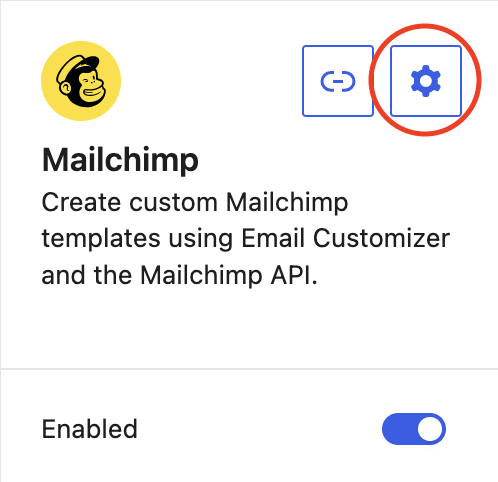
Select the Merge Tags tab to see the available fields you can populate with your custom merge tags. You can use the Mailchimp merge tags directly in your templates, or map them to your custom global merge tags that are used globally with any integration.
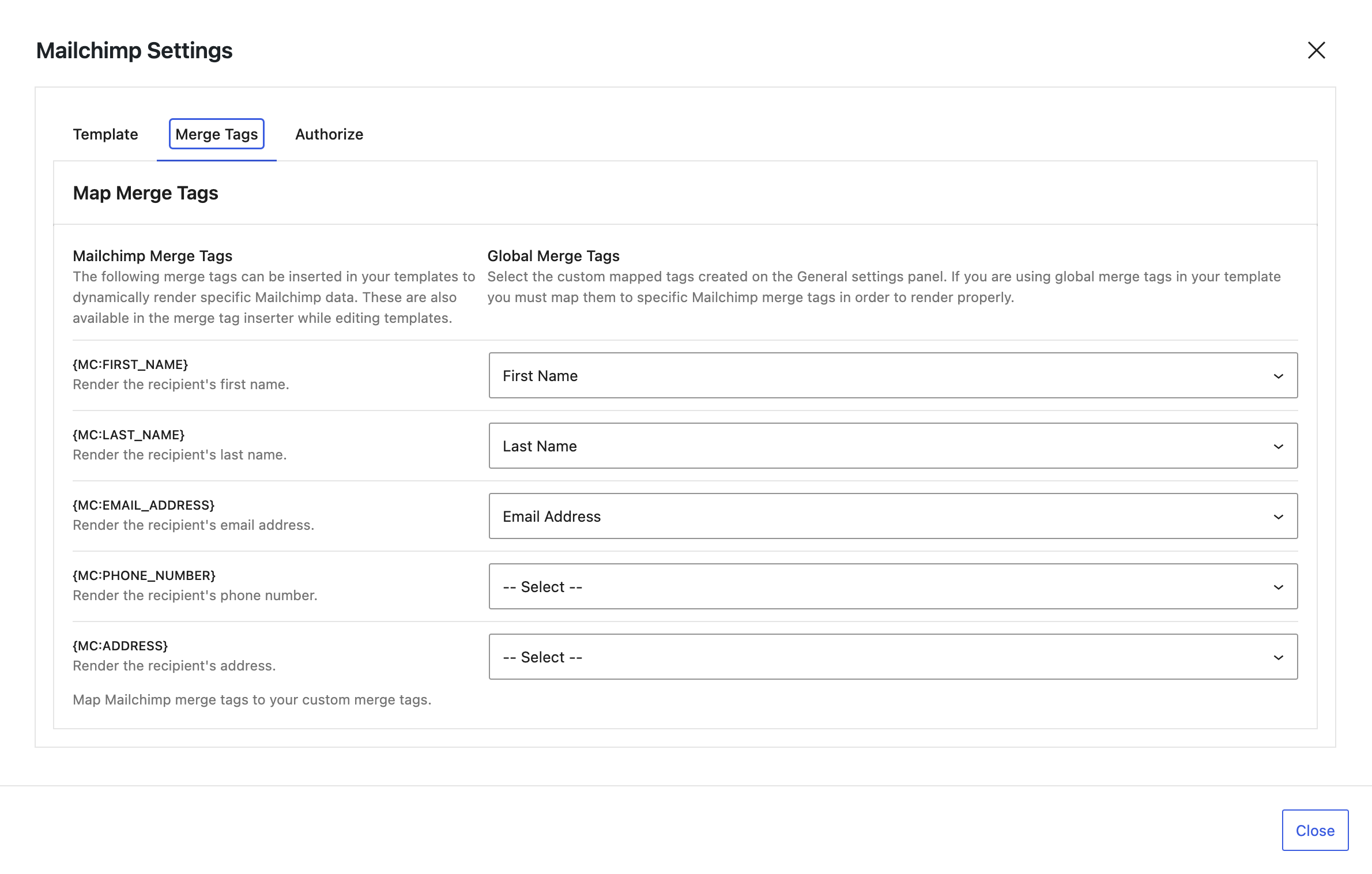
See the following article for more information on setting up and using custom merge tags in your templates: https://www.metaphorcreations.com/article/email-customizer/general/using-merge-tags-in-your-template/
Preview your templates
While on the Template screen, you can preview your template before sending to Mailchimp. Select a template in the Email Template field and click Preview Email. This will open a new tab displaying the fully rendered email template. Keep in mind that you will see merge tag placeholders instead of user data since that is not available at this point.

Send your template to Mailchimp
Click on the Template tab and populate all fields. After all data has been set, click the Create Template button.
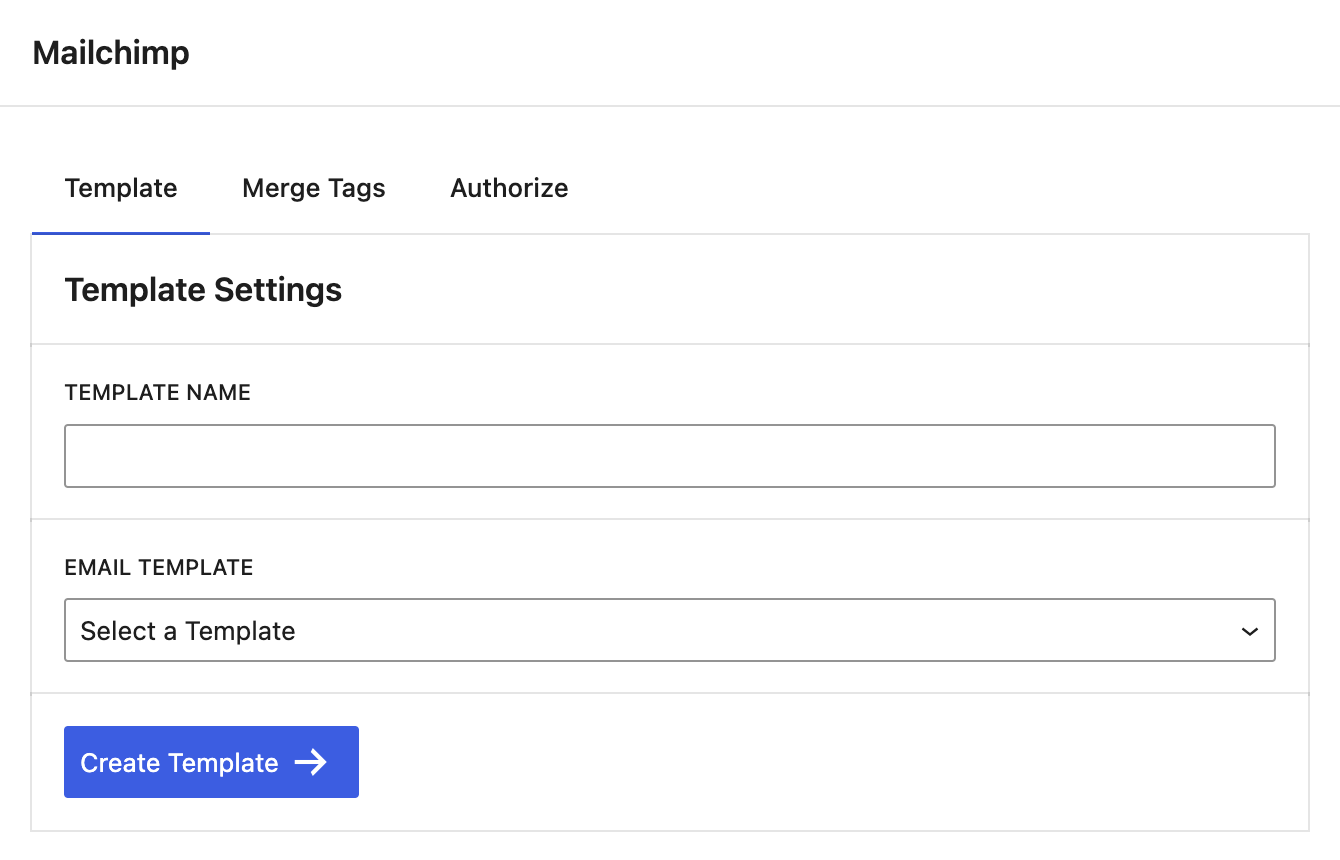
You should see a success message afterwards, confirmation that the template was created.

Using your template on Mailchimp
- Log into your Mailchimp account and select the Content > Emails Templates tab in the sidebar
- Find your Email Customizer template in the Templates list, select the carrot icon next to Edit and click on Create email.
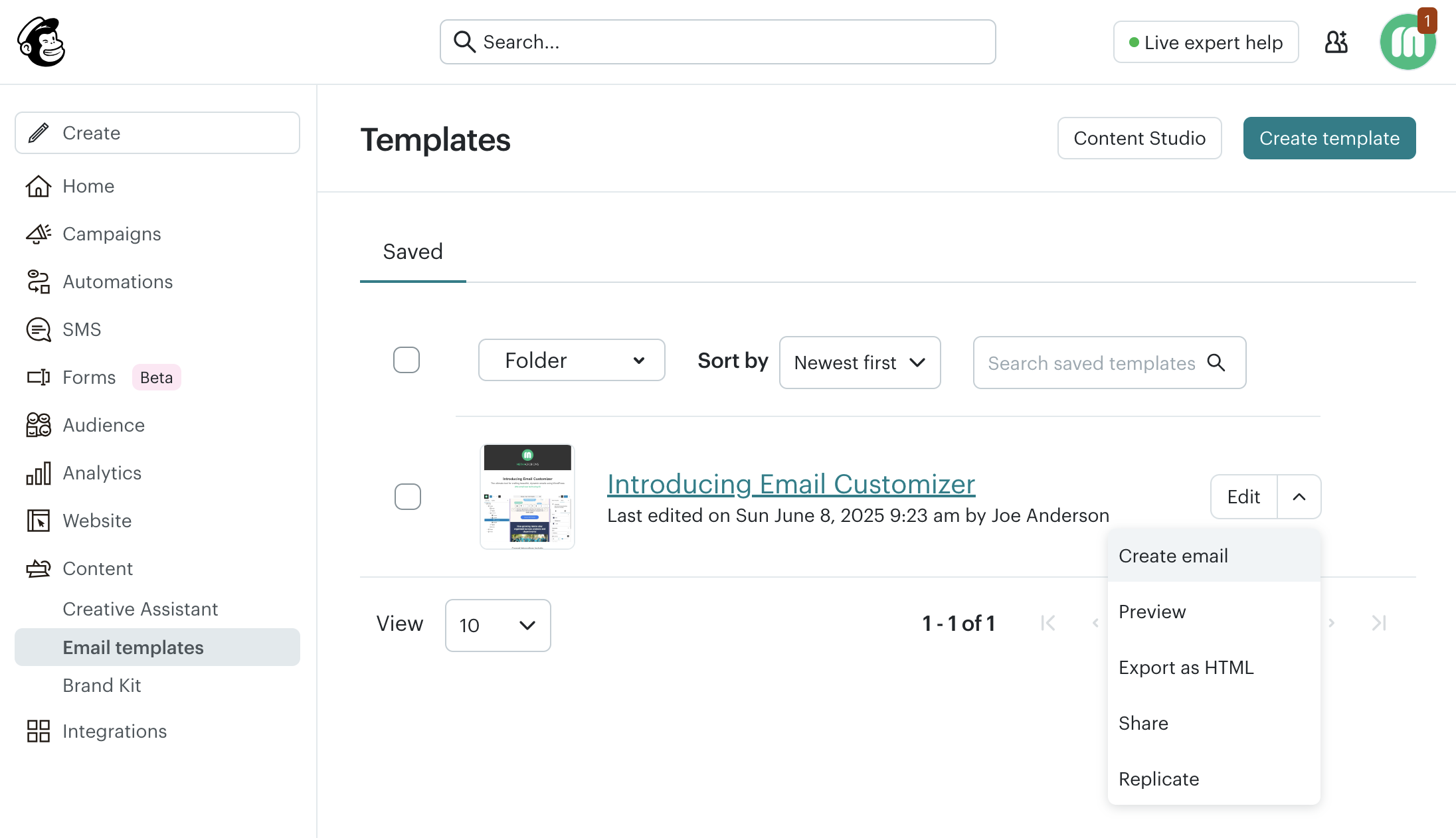
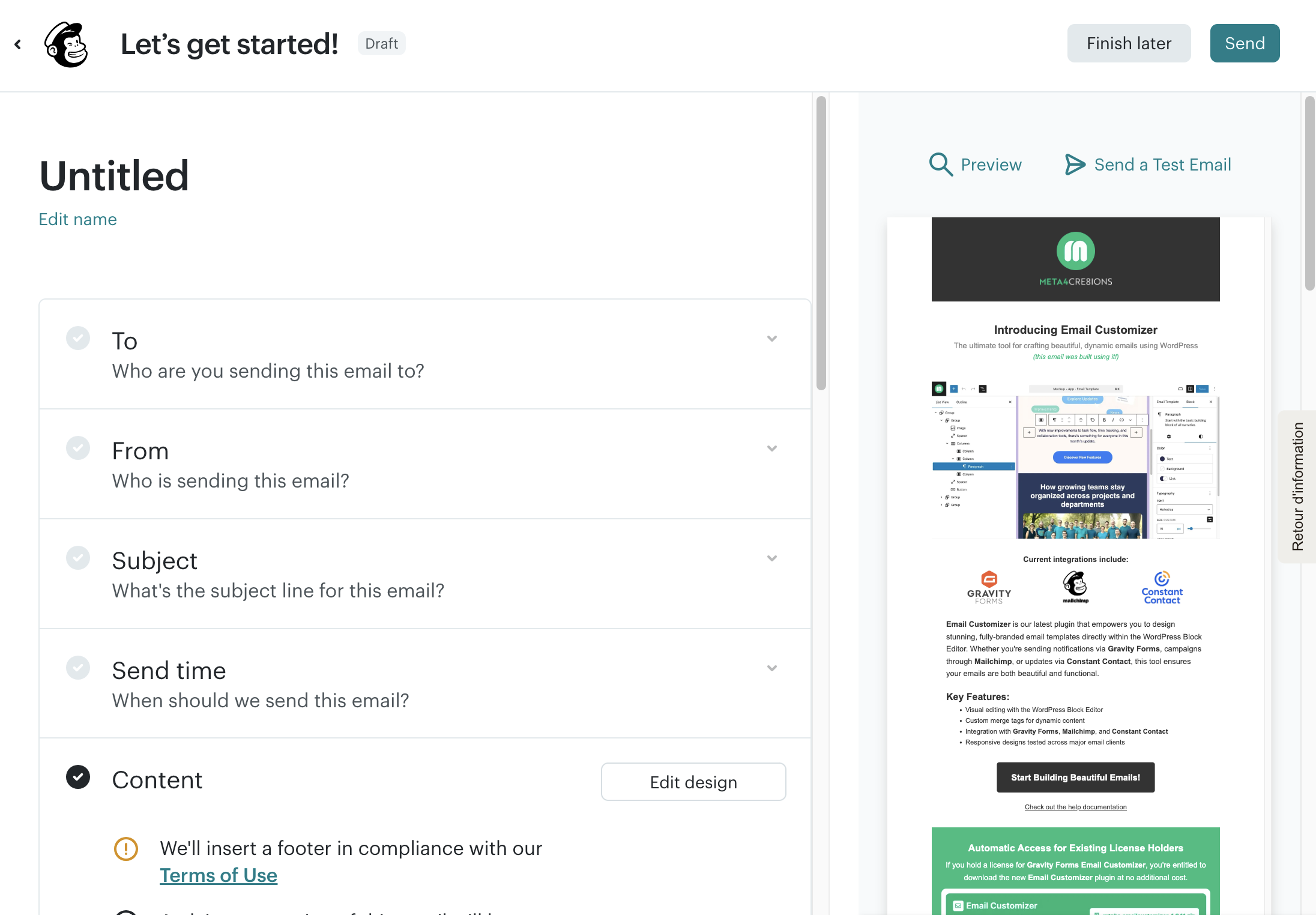
- Configure your email settings, preview and send!
Additional resources
Use the links below for more information and guidance on adding blocks. Keep in mind that these articles are general information related to the WordPress Editor and building with blocks. Email Customizer does not utilize all blocks or functionality due to the limited capabilities of emails.
WordPress Editor